Appearance
Roofing & Facades
Change the roof or facade materials on a house photo—same massing, new finishes.
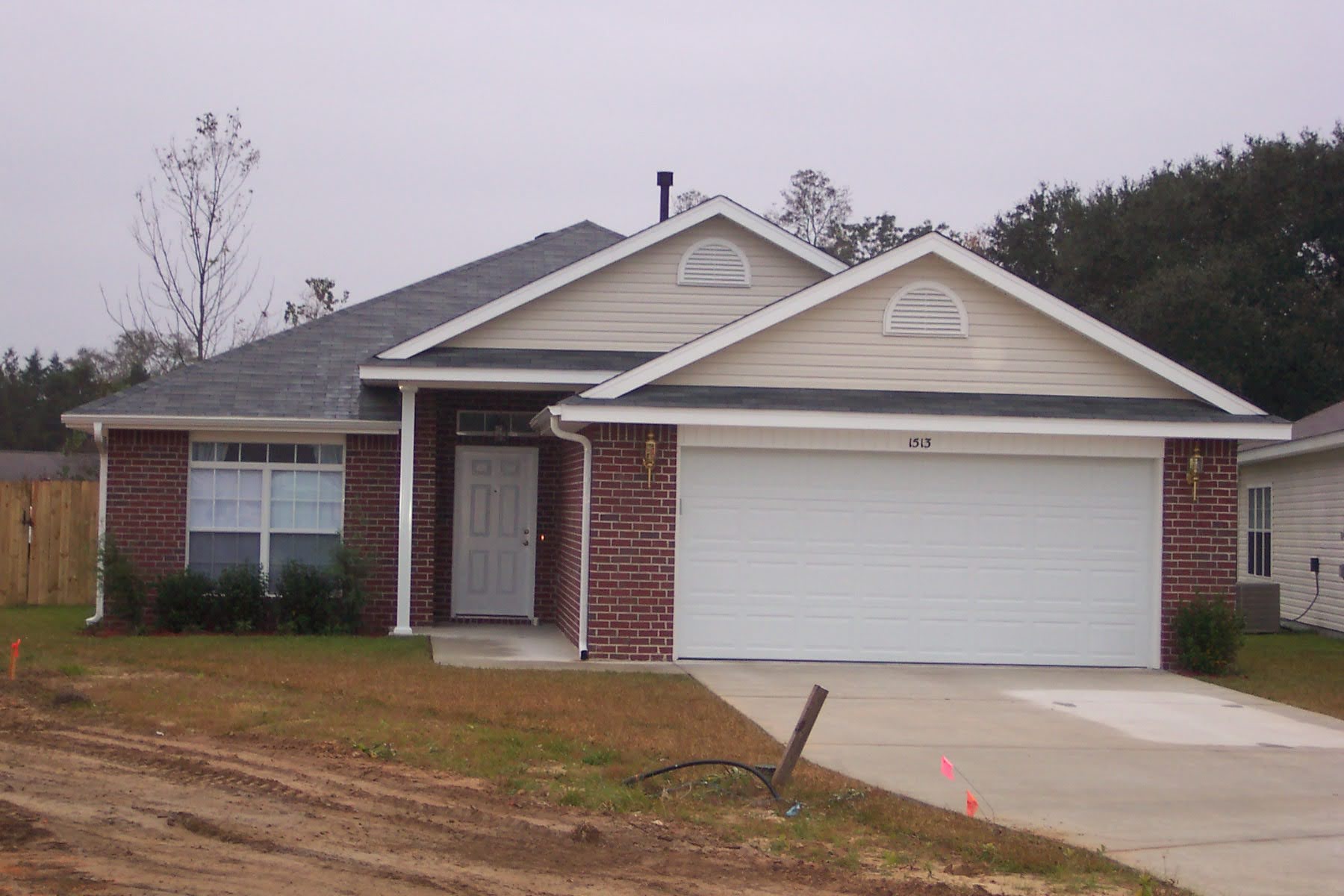
Upload your exterior
Click + New. Upload a clear house photo with a readable roof and facade—straight-on or slight angle works best.

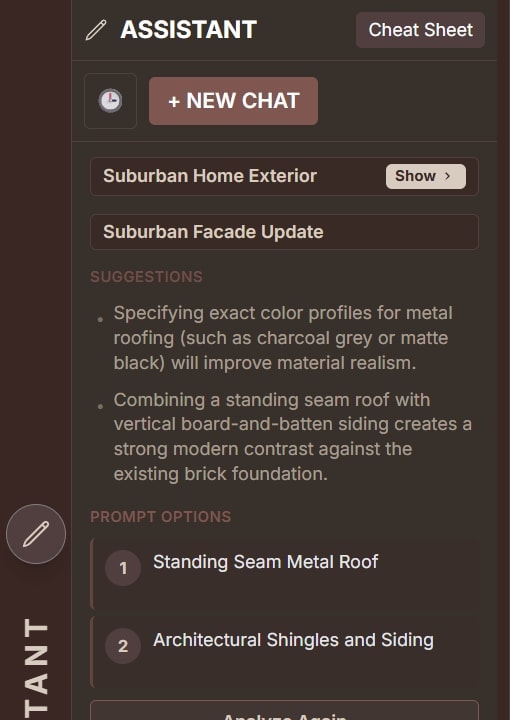
Use the Assistant
Open the Assistant and click a Prompt Option—or paste a roof prompt below.
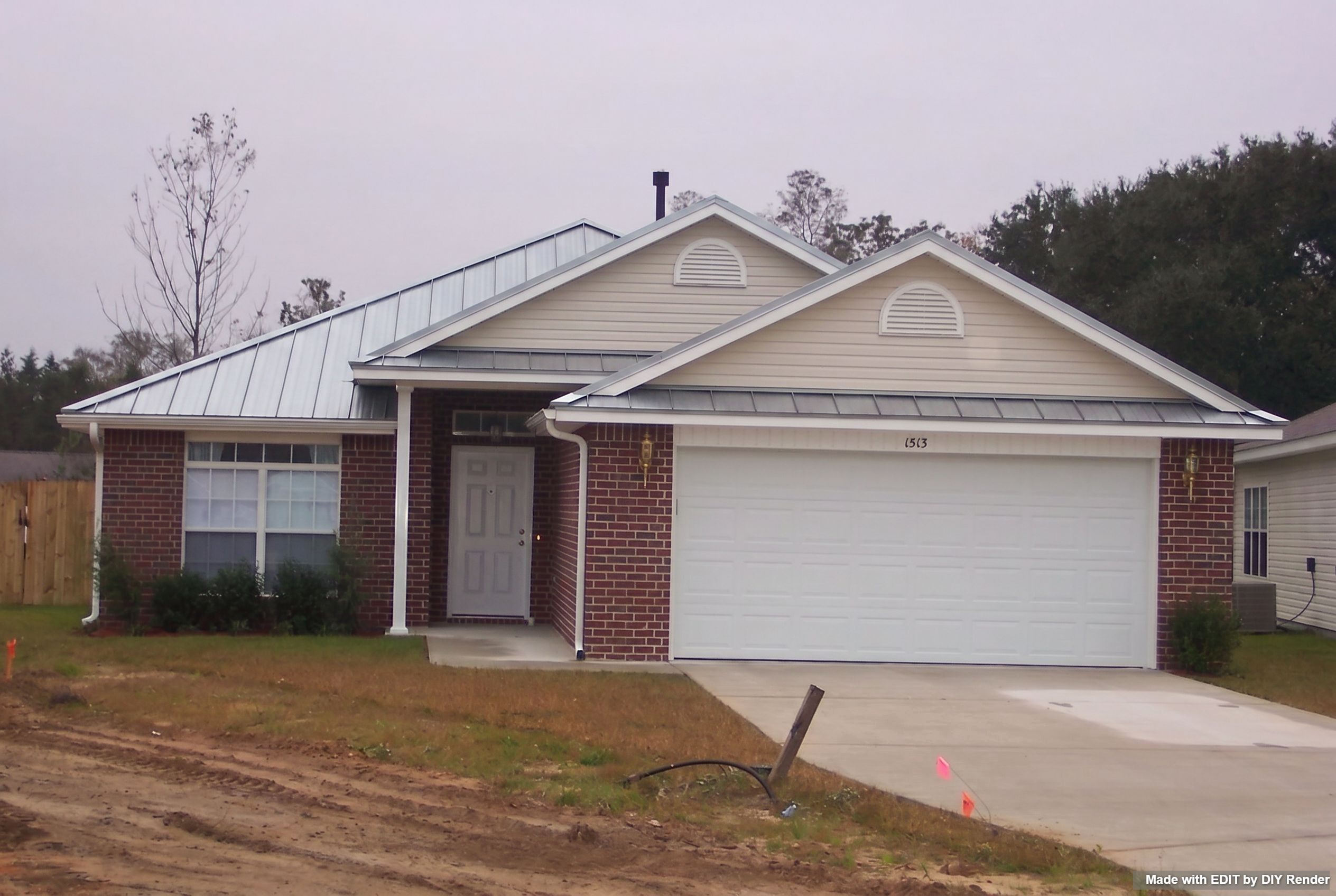
Path 1 — Swap one roof
Commit to a single finish. Keep facades, windows, and crop fixed.
Example: Standing Seam Roof
Under the main prompt in EDIT, use the chips to cycle roof type (asphalt, cedar, clay, slate, wood, stainless steel, solar) and size / scale (small ↔ standard ↔ large)—then Generate.
Prompt
Maintain the exact uncropped aspect ratio and architectural composition of the original image. Change roof to STAINLESS STEEL. The building facades and windows are preserved. Output must be photorealistic with accurate shadows and texture mapping on the roof surfaces.Path 2 — Multi-Roofs
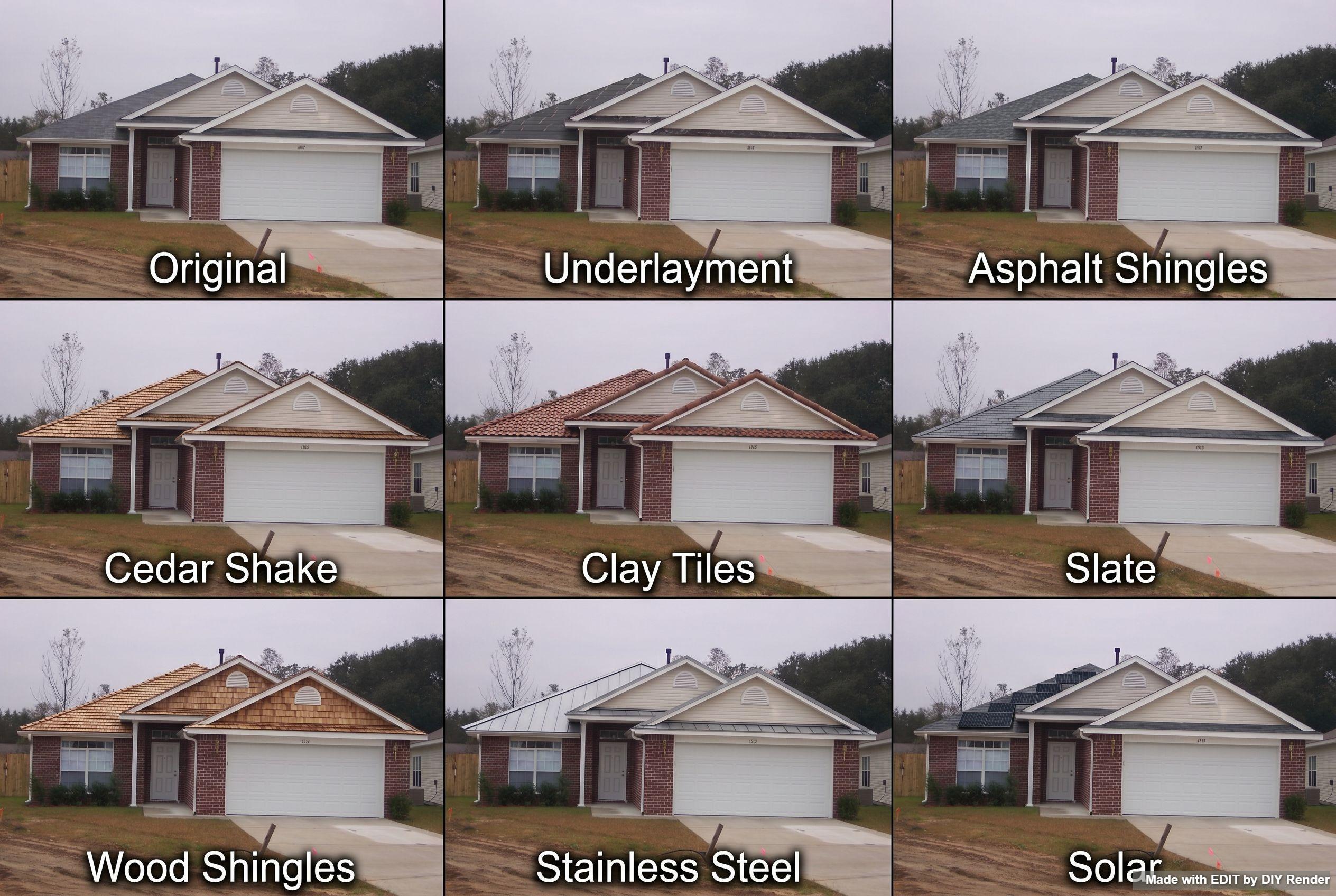
Not sure which roof type to pick? Run a Roofing Styles (Multi-Roofs) grid to compare options side by side—then Enhance the panel you like.
Grids are only available in EDIT. Find them via the Assistant Cheat Sheet, or click Grids above the main prompt area:

Under the main prompt, the same chips let you adjust roof type and size / scale before you run the grid or after you Enhance a panel.
Example: Roofing Styles
Go Further: Explore material packs & era options
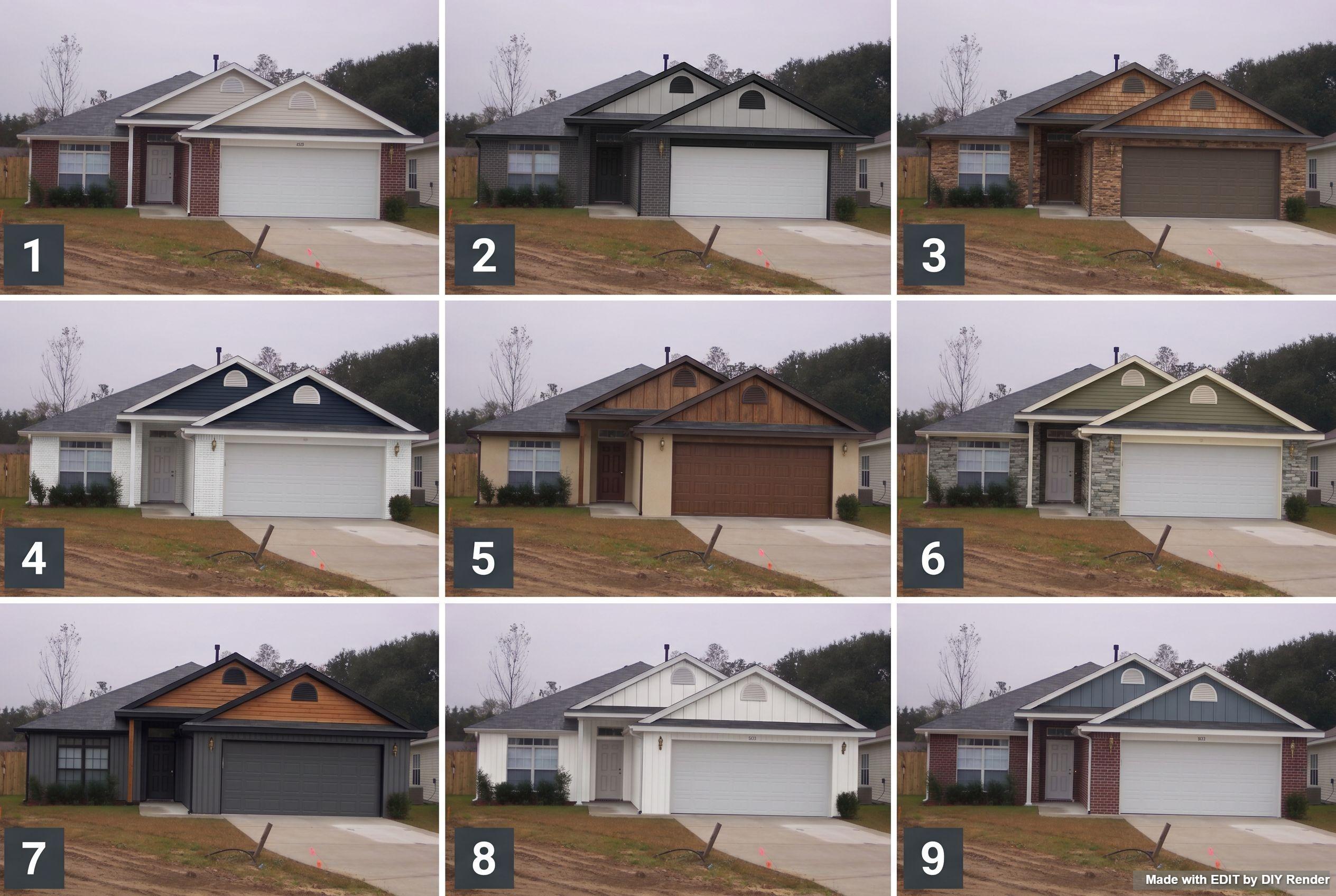
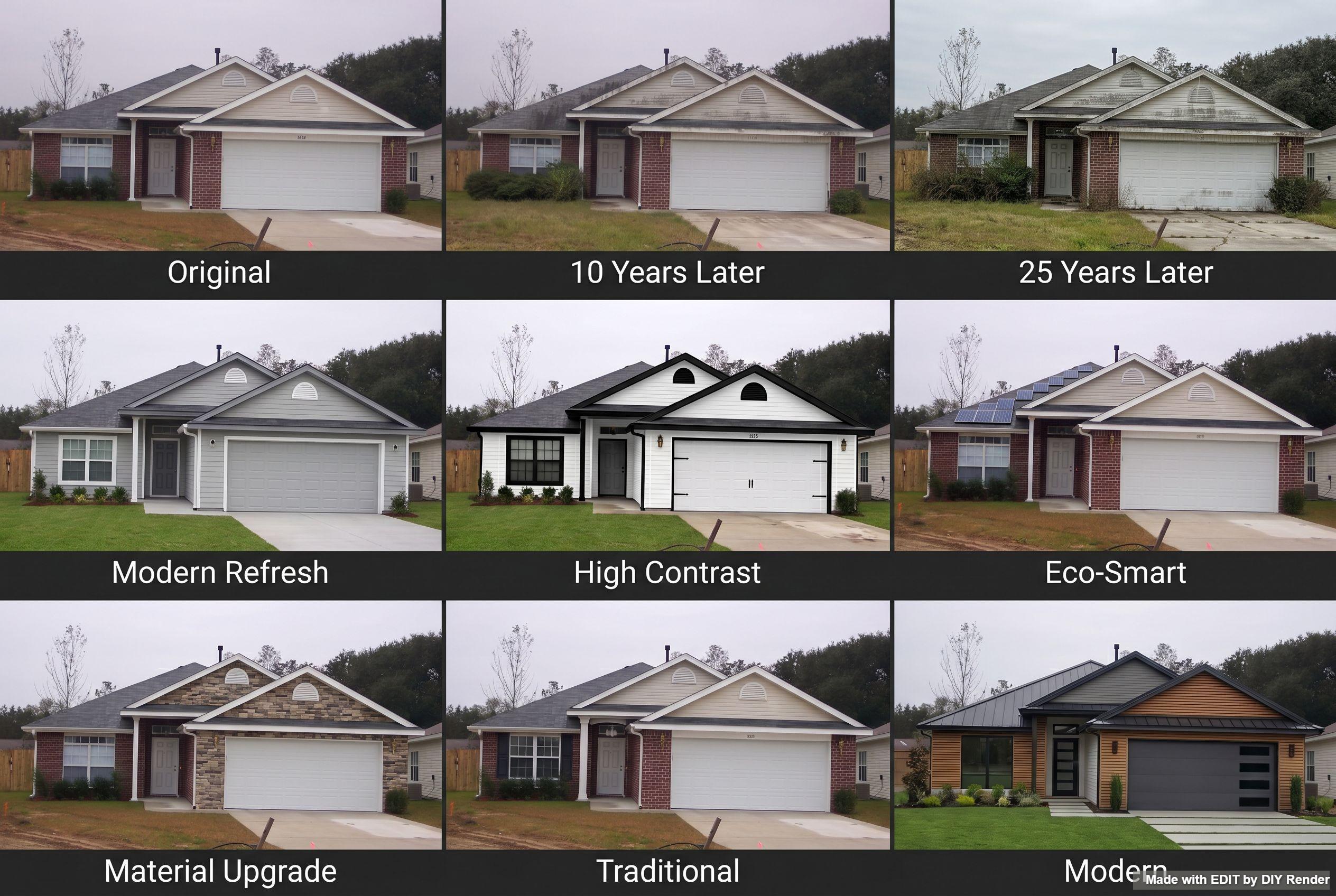
After you settle on a roof—or instead—run facade Material Selections or House Age & Redesign grids, then Enhance the panel you like.
Grids are only available in EDIT. Find them via the Assistant Cheat Sheet, or click Grids above the main prompt area:
Examples: Material Selections · House Age & Redesign
More guides
Same app—different job:
- 3D elevations — drawing → photoreal exterior
- Exterior Restyle, Light & Landscaping — whole-scene restyle, twilight, landscape
Browse every how-to with previews: All guides.
Try roofs and facades before you specify.
Try EDIT free — no credit card.