Appearance
Floor plans from 2D
EDIT treats architectural drawings as precision mode inputs—upload a clean 2D plan, use proven Cheat Sheet prompts (or the Design Assistant), and iterate from furnished 2D through photorealistic 3D top-down views.
Workflow overview
- Upload your 2D floor plan (PDF export, CAD screenshot, or scan).
- Furnish in 2D with a short prompt—or ask the Assistant to draft one for your layout.
- Convert to 3D structural massing, then stage furniture in your chosen style.
- Optional: turn colored elevations into photorealistic 3D exterior views.
Step 1 — 2D plan + Assistant
Upload the plan, open the Design Assistant if you want help wording the prompt, then generate.
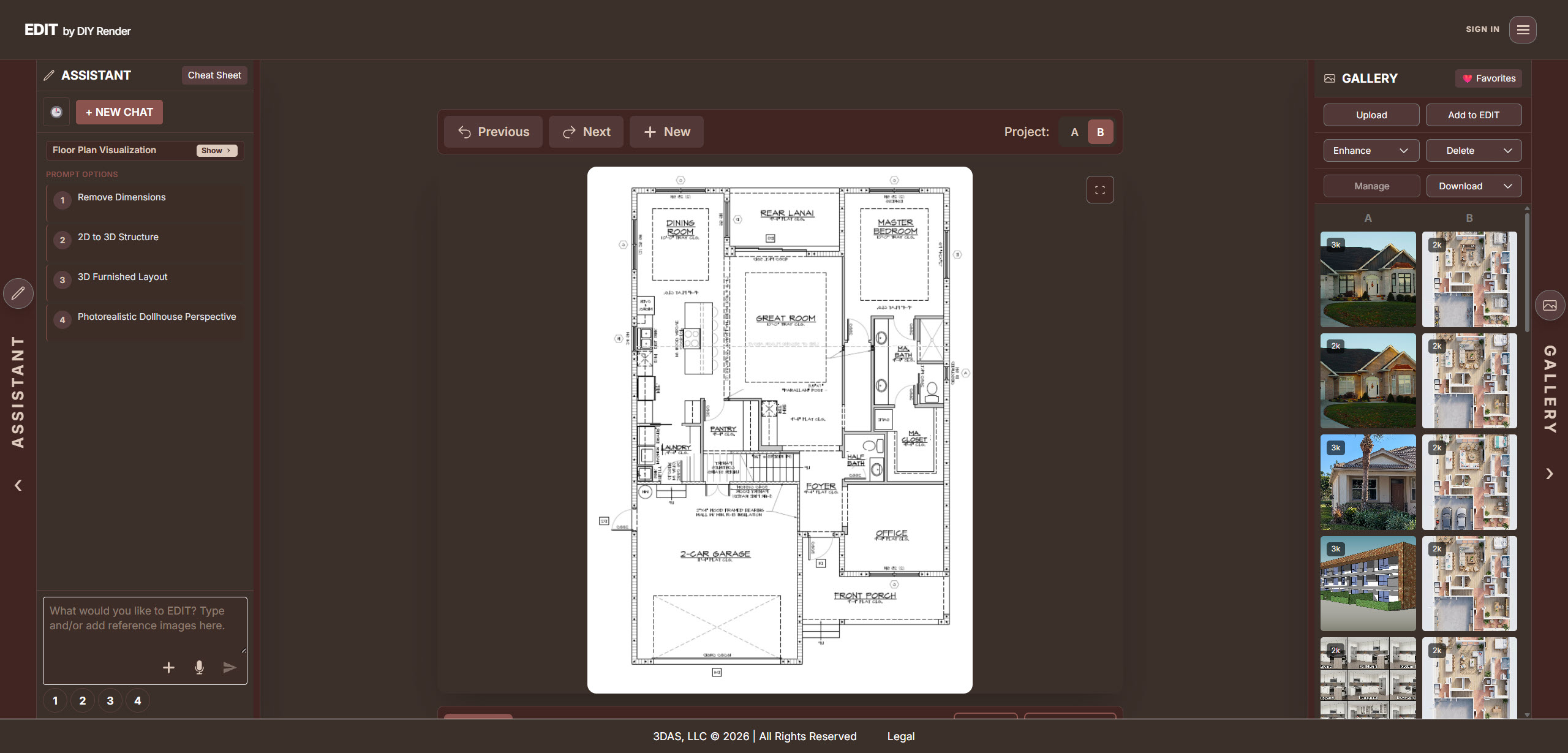
Example prompt: 2D Plan: Add Furniture
Step 2 — 3D furnished top-down
From the same layout, move to a photorealistic 3D plan with furniture and entourage.
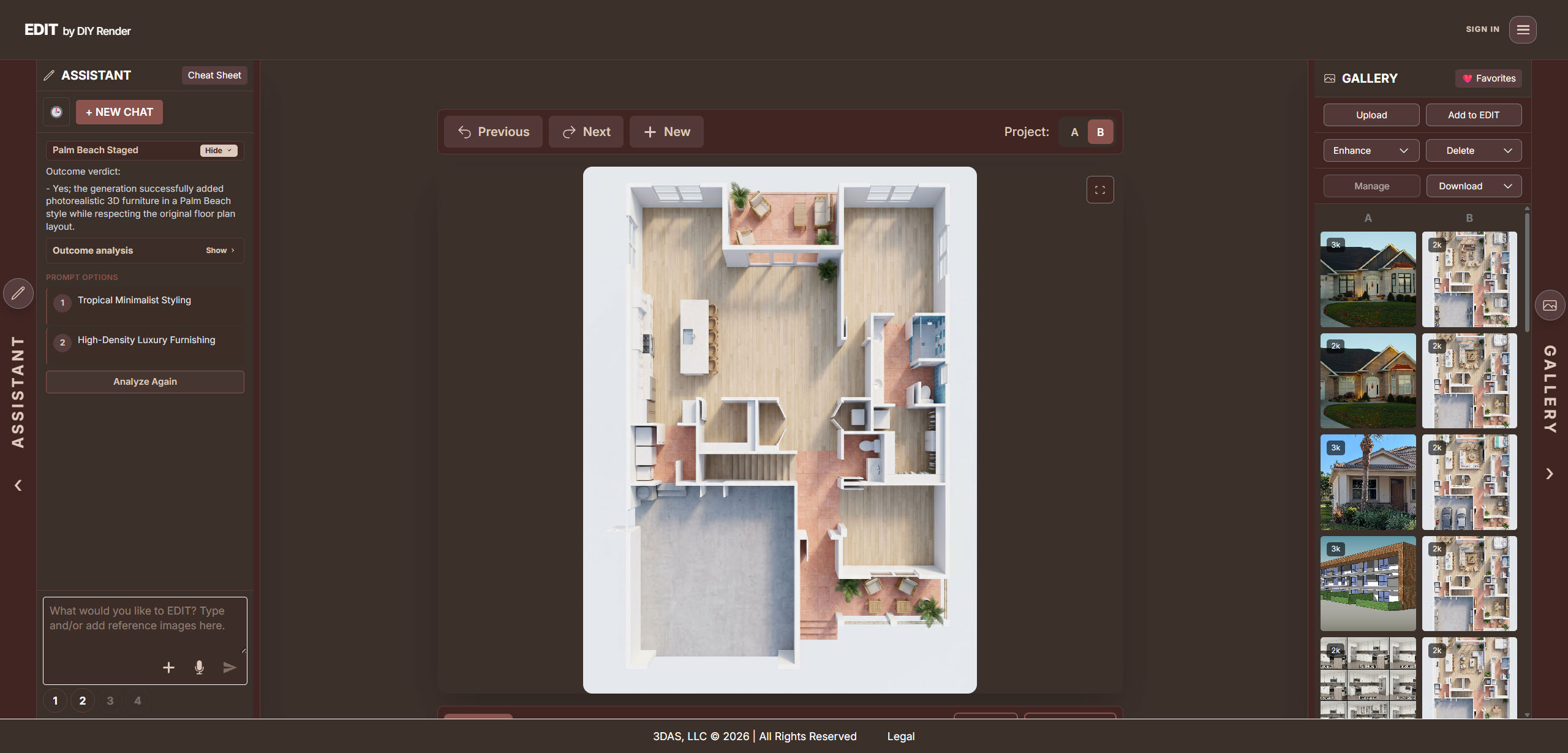
Related examples:
- 2D to 3D Structural Base — walls and openings only, no furniture
- 3D Render: Add Furniture
- 3D Plan: Add Furniture
Step 3 — Style variations
Swap style tokens in the prompt (for example PALM BEACH, FARMHOUSE) to explore different furnishing directions on the same structural base.
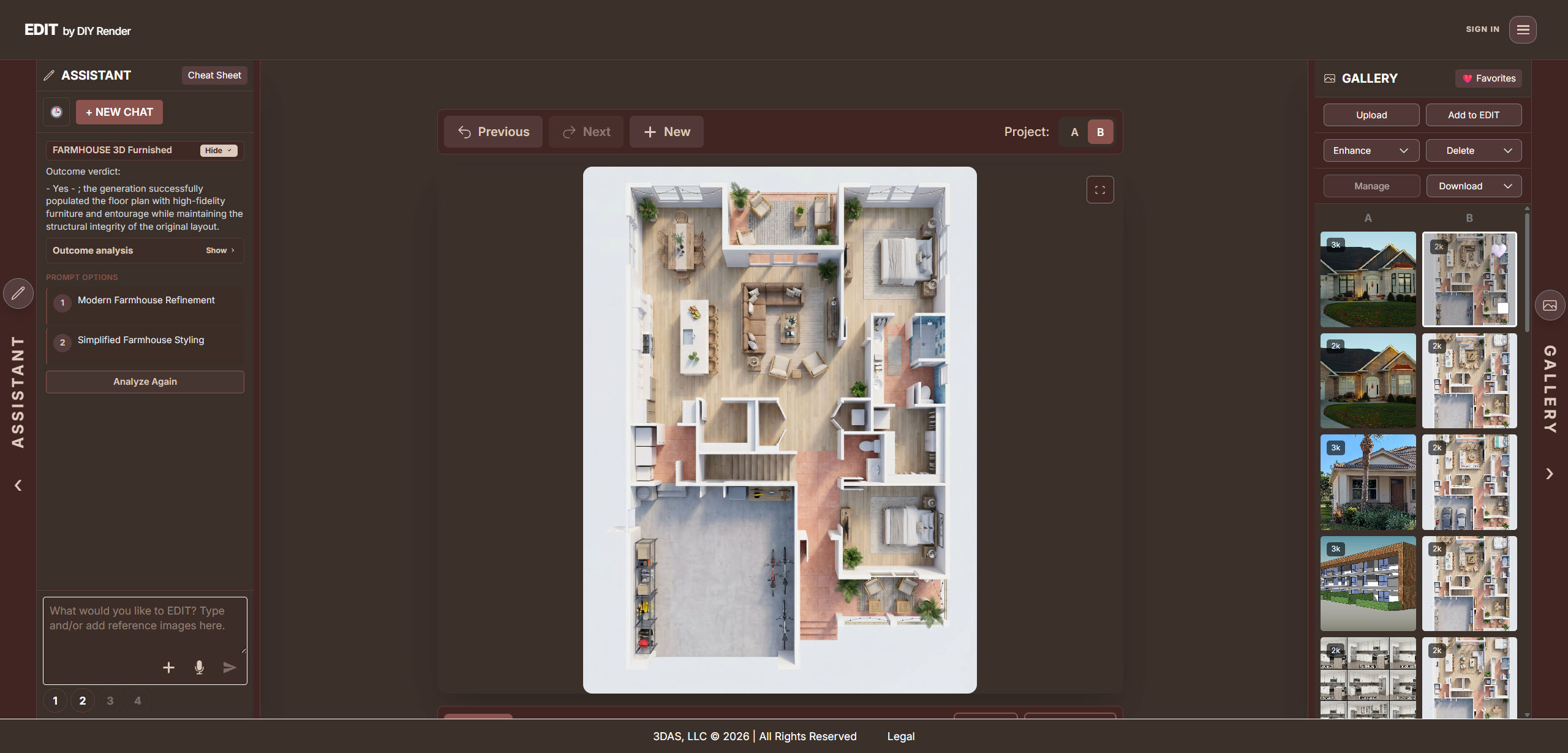
Use the Original | Result previews on each Plans & elevations example page to see the starting image EDIT expects.
Elevations
For front elevations rather than plans, see the 3D elevations guide.
Tips
- Keep line work high contrast; thin gray construction lines are harder for the model to read.
- Chain steps: 2D furnish → 3D base → 3D furnish, using each output as the next upload when needed.
- Failed generations are not charged—refine the prompt and try again.
- Copy any example prompt with the clipboard icon next to Prompt on the example pages.
Open EDIT to start from your plan.